Email >> Message Settings


Email >> Message Settings
This option is used to define settings about the messages you send with documents such as invoices*, statements and purchase orders***. These settings include message templates and automatic file attachments.
Email Templates
When emailing documents such as invoices and statements from the software, your documents will always be sent as PDF attachments to email messages. Email templates are used to define the messages that are sent with the documents when you email an invoices, sales orders, statements, purchase orders or remittance advice notes. A message template can contain standard text and also data fields to include specific information about the document or transaction you are sending.

You can assign email message templates to all of the different sales document types including estimates, quotations, proformas and sales orders. However if you do not assign a template specifically to these document types, the software will automatically use the template assigned to Invoices.
Email message templates are stored in text files with the extension .etp. You can specify a template file for use with each of the different type of documents using the boxes provided. By default these will be filled in with provided template files.
Please Note : Email templates files (.etp) are stored by default in the \Email\Templates sub-folder in the main Avanti folder on your PC (or on your Server PC if using the multi-user edition). Where a file is stored in this default folder you will see just the file name and not the full location of the file. If you choose to create or save a template file in another location then the full path of the file will be displayed and stored.
You will see three buttons to the right of each of the template boxes as explained below :
The first button is used to browse to find an alternative message template file which has been created previously.
The second button is used to create a completely new message template file.
The third button is used to edit the message template file which is specified in the box.
If you choose to edit the existing message template or to create a new one, you can use the Email Template window which gives you the tools to set up a message template to include the precise details you want to send along with your documents.
Click here for details on how to set up Email Templates.
Automatic Attachments
Automatic Attachments can be used when you want to attach an additional file to every document of a particular type that you send. For example you might want to send a Terms & Conditions document with each of your invoices or promotional information with each of your customer statements.
You can specify which file you want to attach to each document type in the relevant box provided. Use the browse button to the right of each box to browse your files, folders and network to locate the file you are looking for.
Please Note : If you are using the multi-user edition of Avanti ensure that each file selected and it's location are shared and are available to all of the other computers on the network. In this case you should ensure that you select the file through it's full network path or URI rather than it's local path on the computer it is stored on so all users can access it when emailing.
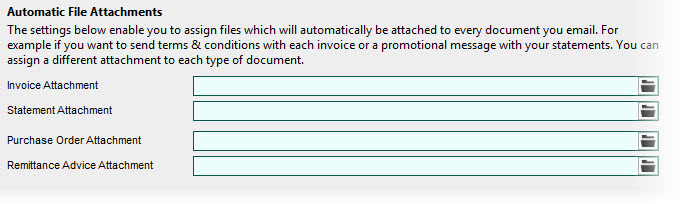
When you email an invoice document, for example, the file specified in the Invoice Attachment box will be sent along with the message and invoice document automatically.