Opening Balance


Opening Balance
This option is used as a simple way to record an opening balance transaction for a financial account.
To access this option you can select Tasks > Financial > Opening Balance from the main menu. Alternatively you can right-click on the account you want to enter the opening balance for in the Financial section and select Opening Balance from the menu.
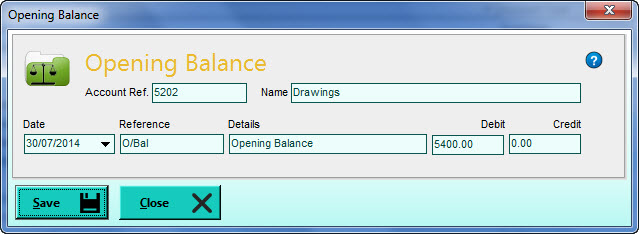
Date
Select the date that you want the opening balance transaction to be recorded on. Click the drop-down button to the right of the box to select a date from a calendar.
Reference
Enter a brief reference of up to 20 characters to identify the transaction. This is set to O/Bal by default.
Details
Enter the details about the transaction for future reference. You can enter up to 80 characters. This is set to Opening Balance by default.
Debit
Enter the Debit value of the opening balance if applicable. The rule of thumb is you enter a debit value to record an increase in an asset (whether money or a fixed asset etc), a decrease in income or sales or an increase in an expense or cost.
Credit
Enter the Credit value of the opening balance if applicable. You would enter a credit value to record a decrease in an asset, an increase in income or a decrease in an expense or cost.
When you are ready to record your opening balance transaction click the Save button. This will record the opening balance transaction and immediately close this window. Click the Close button to abandon any information you have entered.
When an opening balance transaction is saved the balancing entry is written automatically to the Opening Balance Control Account (see the Control Accounts page in Company Preferences). The VAT code used is the No VAT Rate which identifies that the transaction is unrelated to VAT (see the VAT page in Company Preferences).