Backing Up Data


Backing Up Data
This option is used to make a backup copy of a company's data file. To access this option select File > Backup Data from the main menu. You can also access it by clicking the Backup box from the Company Options window when the software opens.
Please note : The Backup Data option backs up a selected company's data file which maintains all of it's accounting information. If you wish to backup all companies which you have registered in the software you will need to run through this process for each company. This facility does not backup subsidiary elements such as your document layouts, email templates etc. You should maintain separate, manual backups for these files.
Backing up a company's data file is done through the Backup Data wizard which takes you step-by-step through the process. You move through the steps of wizard by clicking the Next button or clicking Back to go back a step.
The first page is simply an introduction page. Click Next to move to the next page.
Select Company To Backup
This page asks you to select the company that you want to create a backup for. Click the relevant company in the list to highlight it and click Next.
Specify The Backup File
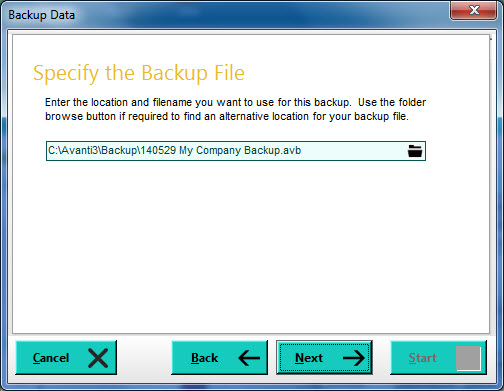
On this page you can specify where you want to save the backup and also the name you want to give it. All Avanti data file backups are given the file extension .avb, You can click the folder button to the right of the box to browse and specify a different location and/or a different file name.
The first time you backup up data the default location will be the Backup sub-folder of the main Avanti folder. Once you carry out a backup, the location where you saved the backup to is saved and will be used as the default location each time you backup in the future. The default file name for the backup consists of the date in yy/mm/dd format along with the full name of the company. By naming the backup in this way it will enable you to easily sort your backup files in date order.
Click Next to move on.
Ready To Backup
This is the final page and simply prompts you to click the Start button to create your backup. After you have clicked Start the software will create a backup of the selected company's data file into a file stored and named as you specified earlier. Once completed the software will display a message informing you that the backup was successfully created and where it is stored.