Restoring Data


Restoring Data
This option is used to restore a company's data file into the software from a backup previously created in the software. This option can be accessed by clicking the Restore box from the Company Options window when the software opens.
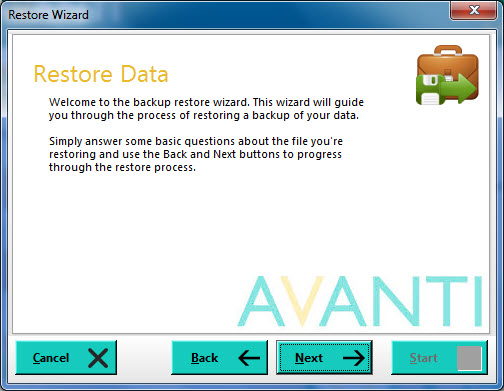
Restoring a company's data file from a backup is done through the Restore Data wizard which takes you step-by-step through the process. You move through the steps of the wizard by clicking the Next button or clicking Back to go back a step.
The first page is an introduction page and you can click Next to move on.
Specify the Backup File to Restore
On this page you are asked to specify the backup file you want to restore. Click the folder button to the right of the prompt box to browse and locate the backup file. The browse window only includes Avanti backup files that have the extension .avb. When you select to browse to locate the backup file that you want to restore, the default location will be the folder where you last saved a backup file to. Once located, select the backup file and click Open. The full path and file name of the selected backup file will be displayed. Click Next to proceed.
Ready To Restore
This page tells you that the Restore Data wizard is ready to restore the backup file. Click the Start button to begin restoring.
Select Restore Location
During the restore process, the software will check if the data file which is being restored is for a company which is already registered with the software. If it is already registered you will be presented with the Select Restore Location page. On the page you are given two options; the first is to Overwrite the existing data file for the company with the data file on the backup and the second option is to restore the data file on the backup and register it as a new company. Check the option you want and click the Start button again.
Once the data file has been restored you will be given a message informing you that the backup was restored successfully.