Batch Entry


Batch Entry
The Batch Entry option is used to enter a batch of transaction entries on the same form. This is done by entering each transaction in a batch line-by-line. Batch Entry can be used to enter a number of different types of transactions in the same form including customer and supplier invoices, credits and payments as well as bank payments and receipts.
To access this option you can select Tasks > Bank > Batch Entry from the main menu or by clicking the Batch Entries button in the Bank section. This option is also available from the Customer and Supplier sections on their respective Transactions menu.
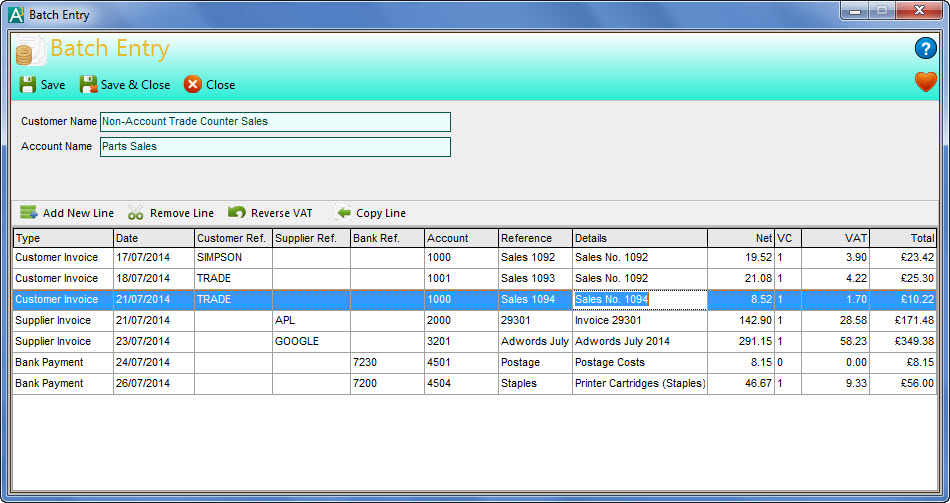
Each line on the form represents a single transaction although multi-line transactions can be entered as will be explained later.
The Toolbar above the entry list contains options to help you carry out key tasks :
Click the Add New Line button to add a new line underneath the existing entry lines. A new line is also added automatically when you have completed each line.
Click the Remove Line button to delete a line from entry list.
Click the Reverse VAT button to calculate the VAT inclusive of a value entered into the Net column on the selected entry line. This will then place the resulting values in the Net and VAT columns.
Click the Copy Line button to copy the details on the selected line to a new line added at the bottom of the list.
To enter a transaction complete the relevant information on the form :
Type
The first prompt on each line is to select the type of the transaction you want to enter on the line. Click the drop-down button or press Alt+DownArrow on the keyboard to select the transaction type from the list. The type of transaction that you select will determine the fields/columns that must be entered to complete each transaction Line.
Date
Enter the date for the transaction line. You can enter the date directly or to select a date from a calendar click the drop-down button or press Alt+DownArrow on the keyboard.
Customer Ref.
Enter the reference for the customer you want to select for this transaction. This is only applicable if you are entering one of the customer transaction types. You can begin typing the reference and a drop-down list of matching customers will be displayed for you to select from. Alternatively you can click the down-arrow button or press Alt+DownArrow on your keyboard to display a full drop-down list of all customers. If you require to search for a customer you can click the Look-Up button (magnifying glass) to bring up the search window to find the customer you require. Once a customer reference is selected the customer's name will be displayed at the top of the form.
Supplier Ref.
Enter the reference for the supplier you want to select for this transaction. This is only applicable if you are entering one of the supplier transaction types. You can begin typing the reference and a drop-down list of matching suppliers will be displayed for you to select from. Alternatively you can click the down-arrow button or press Alt+DownArrow on your keyboard to display a full drop-down list of all suppliers. If you require to search for a supplier you can click the Look-Up button (magnifying glass) to bring up the search window to find the supplier you require. Once a supplier reference is selected the supplier's name will be displayed at the top of the form.
Bank Ref.
Enter the reference of the bank account you want to record on this transaction. This is only applicable to payment and receipt related transactions. You can begin typing the bank account reference and a drop-down list of matching bank accounts will be displayed for you to select from. Alternatively you can click the down-arrow button or press Alt+DownArrow on your keyboard to display a drop-down list of all bank accounts. Once the bank account is select the account name is displayed at the top of the form.
Account
Enter the reference of the financial account you want to use on this transaction. This is not applicable to customer and supplier payment transactions. If you are entering a customer or a supplier transaction and the selected customer/supplier has an Account setting on their record then this will be used as the default account. You can begin typing the account reference and a drop-down list of matching accounts will be displayed for you to select from. You can also click the down-arrow button or press Alt+DownArrow on the keyboard to display a drop-down list of all accounts. If you need to search for an account you can click the Look-Up button (magnifying glass) to show the search window to find the financial account you require. Once an account is selected the account name will be displayed at the top of the form.
Reference
Enter a brief reference of up to 20 characters to identify the transaction.
Details
Enter a transaction detail describing the transaction of up to 80 characters.
Net
Enter the net value of the transaction. If you want to use the VAT reverse function then you can enter the total value in here and click the Reverse VAT button to calculate the net and VAT values automatically.
VC
Enter the VAT code for the transaction. This is in the range of 0 to 9 with each code representing a rate at which the VAT is calculated based upon the net value entered. The default for this field is dependant on the transaction type being entered and any default settings on the customer/supplier record where applicable.
VAT
Enter the VAT (sales tax) value on the transaction if different than the VAT value calculated for you.
Multi-Line Transactions
Each line represents a single transaction enabling you to specify one financial account and one VAT code/rate to the transaction. However it is quite common for there to be occasions where you need to have more than one financial account and/or VAT rate on the same transaction.
The Batch Entry option includes a mechanism to cater for this situation. You simply enter your first line for the transaction as normal, specifying all of the necessary information. You would then specify the financial account, values and VAT code for the first element of the transaction. You then add a new line directly underneath this using the same details as the first line including Transaction Type, Date, Customer/Supplier Ref. and Reference and enter the required financial account, values and VAT code for the second element of the transaction. Repeat this until your multi-line transaction is complete.
The criteria that the software uses to determine whether lines are associated and are to be recorded as part of the same transaction when saving are as follows :
1) They are consecutive in the entry list.
2) They have the same Transaction Type.
3) They have the same Date.
4) They have the same Customer/Supplier/Bank Ref. (depending on which is applicable)
5) They have the same Reference.
If all of the criteria above is met on a line-by-line basis during saving then all of the lines meeting this criteria will be saved together as one transaction with multiple account and/or VAT breakdowns.
Saving Entries
When you are ready to save your batch of entries you can click either the Save or Save & Close buttons at the top of the form.
The first step that the software takes is to validate each entry in the list to ensure there is no erroneous or missing information. Any transactions which it finds to be invalid will not be saved and after the validation and saving process is complete, the software will leave the invalid entries in the list with a warning icon on the left-hand side of each one to inform you there were errors on them which need resolving before they can be saved. You can then highlight any entry line which has not been saved and at the bottom an error panel is displayed which gives you the full details of the errors which need correcting on that line before it can be saved.

If there are no entries in the list after saving (or if you have clicked Save & Close and the window closes) then all entries were validated and saved. In the case of multi-line transactions, the software will identify them and validate them as a group rather than individually and if there are any errors on any of the lines in the transaction it will not save any of them.