Budget Vs Actuals


Budget Vs Actuals
This option is used produce a financial report comparing the actual balances with the budget figures you have defined for financial accounts. Using this option you can produce your financial management reports for any period or combination of periods you choose.
You can access this option by selecting Reports > Financial > Budget Vs Actuals from the main menu or click click the Reports button in the Financial section and select Budget Vs Actuals from the menu.
Selecting Periods
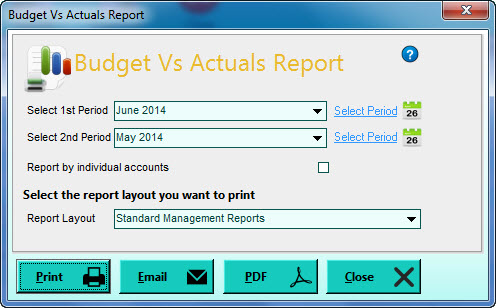
Each of the reports can include balances for up to 2 separate periods and each period can include balances for any range of dates required including individual months and cumulative periods such as financial quarters and financial years. By default the current and previous months will be selected.
To select the periods you want on the report use the Select 1st and 2nd Period boxes. Click the down-arrow button on the required Period box (or press Alt+DownArrow on your keyboard) and this will drop-down a list of standard periods for you to select from. The standard periods provided include the current month and previous 2 months, the 3 recent quarters and the current and 2 previous financial years. If one of these standard periods represents the required period you want to include then select from the list accordingly. If you want to clear the particular period from the report then select the None option at the bottom of the list.
If you prefer to specify a different period than the standard options provided in the drop-down list then you can click the Select Period link or the calendar icon displayed to the right of each Period select box. You can also select the Other Period ... option from the drop-down list to select a bespoke period. When you click any of these options the software will display the Select Period window which allows you to more precisely define any specific period you require. See the Selecting Periods page for more information.
Report by Individual Accounts
This is used to specify if you want your budget vs actuals report to display individual financial accounts or not. If you leave this checkbox unticked (as default) then the report will only include the groupings, as defined in the Financial Report Setup option, to display grouped balances. If you tick this box then the defined groupings will be used and the individual accounts will also be displayed with their balances.
Select the report layout you want to print
This applies if you have defined additional layouts for financial reports using the Financial Report Setup option. You select the layout that you want to use for the report by clicking the Down-Arrow button or pressing Alt+DownArrow on the keyboard and selecting the required layout. The default layout is Standard Management Reports.
When you have defined the criteria for the report that you want you can click one of the buttons at the bottom of the window :
Click the Print button to produce the Budget Vs Actuals Report. By default this will show an on-screen preview for you to view the report and you can then print it from the Preview window. If you prefer that the software send reports directly to the printer when selecting a Print option then you will need to change the Preview All Reports Before Printing setting in the Reports & Documents page in Company Preferences. See Company Preferences for more information.
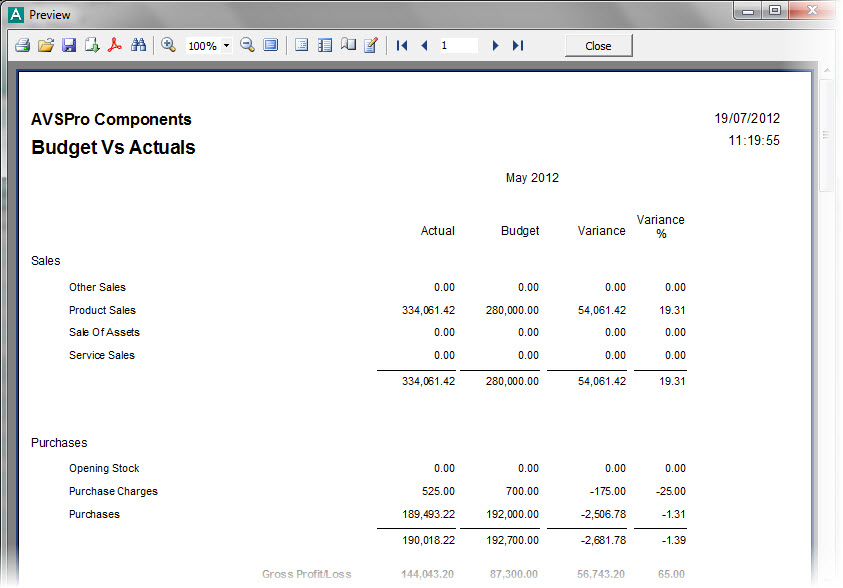
The report displays the Actual balance totals, the defined Budget totals and displays the Variance between the Actual and the Budget figures and also gives a Variance percentage. Where the Variance % displays a positive value, the Actuals are greater than the Budgets and where a negative percentage is displayed the Actual is less than the Budget figure. In the case of Sales or Income accounts a positive variance percentage is good news (you've exceeded your sales budget or target) for Purchases and Expense or Overhead accounts a negative variance percentage is good news (you've spent less than you budgeted for) and vice versa.
Click the Email button to send an email to a specified recipient with a PDF document of the report attached to it. Once the report is produced you will be given an email window to enter the recipient's email address and the message you want to send with the report. See the Sending Emails page for more information.
Click the PDF button to export a PDF document of the report. Once the report is produced you will be given an export window which enables you to make settings about how you want the PDF document exported and whether you want to open it after it has been exported. You can then select where you want to save it and to save it under a specific file name. See the Exporting PDF Documents for more information.