Email Outbox

Email Outbox
The Email Outbox is used to view the history of emails that you have sent from Avanti including statements, invoices*, remittance advice notes and purchase orders**.
To access the Email Outbox you can select the Email button the main toolbar or by selecting Utilities > Email Outbox from the main menu.

On the left hand side of the email list you have the range pane. This is where you specify the criteria for the emails that you want to include in the list. When you have defined the criteria you want you can hide this panel to expand the width of the transaction list by clicking the split-panel bar displayed between the range panel and the transaction list. You can click the split-panel bar again to show the range panel.
Include Emails To ...
You can select either a customer or a supplier that you want to see emails for. For example if you want to see emails that have been sent to a particular customer you can enter their reference in the Customer Reference box. To find the relevant customer or supplier you can enter a partial reference that you know or click the magnifying glass button.
Include Emails ...
The Date From and Date To boxes enable you to specify a date range that you want to see emails for. If you only enter a date in the Date From box then all emails from that date will be included. If you enter a date in both boxes then all emails between the two dates will be included. Use the down-arrow buttons at the side of the date boxes or press Alt+DownArrow on your keyboard to select a date from a pop-up calendar. Leave both boxes blank if you want to include all emails or click the Include All Dates link if you want to reset the date boxes.
Viewing Emails
If you want to view an email in the list you can click the magnifying glass to the left of the relevant email. You can also highlight the email you want to view in the list and click the View button on the toolbar or you can double-click the email you want to view.
When you select to view an email you will see a window with the full details of the email displayed.
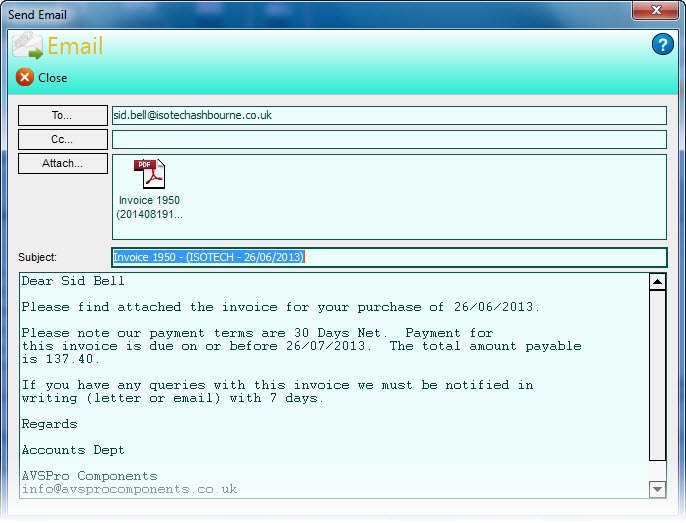
If you want to open any attachments when viewing an email you can double-click the relevant file listed in the Attachments box.
Opening Attachments
In the email list you can see which emails have attachments by a paperclip icon displayed to the left of the email. If an email has a paper clip you can click it and the attached file will be opened. If an email has more than one file attached to it, when you click the paperclip the email will be opened instead and you can view each file attached to it in the email view window has explained above.
New Email
If you want to send an email from within the Email Outbox you can click the New Email button on the toolbar. See Send Emails for more information.
Refresh
Click the Refresh button if you want to refresh the email information in the list if more emails have been sent since initially opening the option.