Export Data Lists


Exporting Data Lists
You can export the information displayed in any data list throughout the software. You can export to several different formats for use in importing into 3rd party software including Excel (in XLS format), CSV (comma separated values), HTML and XML.
Please note : The data that is exported is based entirely on the information selected in the list at the point of export. This takes into account filters, sort orders, column positions, visible columns etc. Therefore you should set up your data list to include precisely the information and format that you want before selecting to export.
To export a data list, right-click on the list, select Export List ... from the menu and select the relevant format that you want to export the data in from the sub-menu.
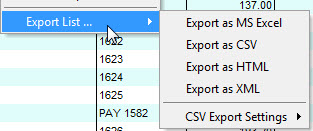
Once you have selected the format that you want you will be asked to specify the location and the file name where the exported file will be saved to. The default folder will be the Export sub-folder inside the main Avanti folder.
CSV Export Settings
The last option on the Export List menu is CSV Export Settings. These settings are useful if you want to export information from data lists in CSV (comma separated values) format to determine how the information is exported to best suit your needs. These settings enable you to define if you want to export with fields enclosed in double quotes and if you want to include or ignore the commas used in thousand separators for value fields. The type of data you are exporting or the restraints of the software you will be importing the information into may determine how you want the CSV information to be exported using these settings.
To change these settings select the CSV Export Settings from the Export List menu and you will see another sub-menu with two options on it.
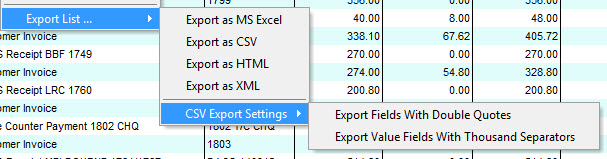
By default both settings will be switched off and therefore by default your CSV exports will not have field values encased in double-quotes and they will not include the comma used for thousand separators within value fields.
To switch either of these settings on, select them from the sub-menu. The next time you open the menu, the selected option will be ticked.

The settings made are saved on a per-user basis and therefore the next time you run a CSV export from any list, these are the settings which will be used by default.