Post Recurring Entries


Post Recurring Entries
This option is used to record recurring entries to your accounts. Recurring Entries are templates for recording regular payments and receipts that have been set up using the Recurring Entries option in the Bank section. If you are using Recurring Invoicing*** in the Sales section, the software will also include any recurring invoice templates that are due.
This option can be accessed by selecting File > Period End > Post Recurring Entries from the main menu. Also this option is displayed automatically when the software loads if any of your recurring entry templates are due for processing.
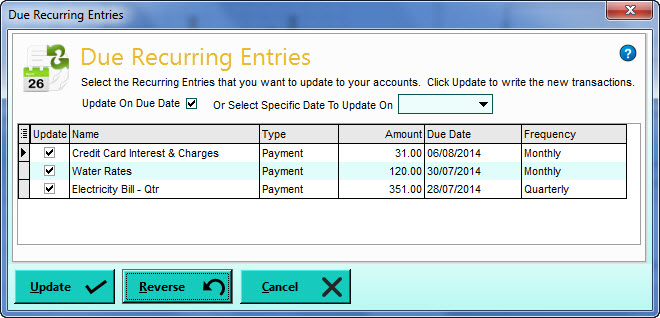
All of your recurring entries which need processing are listed, giving their name, type, amount, date next due for processing and their frequency. By default all entries have their Update checkbox ticked so they will all be processed when you click the Update button. Untick any of the entries that you do not want to process. Alternatively you can click the Reverse button which will untick all those entries which are ticked and vice versa.
Recurring Invoices
Recurring Invoices are template invoices that are used to generate repeated invoices on a pre-determined frequency such as monthly or weekly. When the Due Recurring Entries window opens, if any recurring invoice templates are due for processing, they will also be included in a separate list.
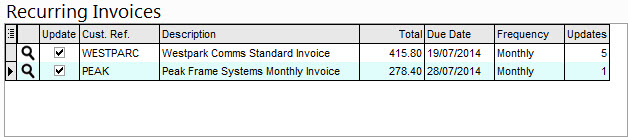
The process is the same for recurring invoices - tick the Update box for each invoice you want to generate.
Update On Due Date
This checkbox asks if the selected recurring entries are to be recorded using the date on which they are each due for processing (displayed in the Due Date column). This checkbox is ticked by default. If you would prefer that the entries are all processed on a specific date then untick this box.
Select Specific Date To Update On
If you have unticked the Update On Due Date checkbox then you must enter a date on which all of the selected recurring entries will be processed on. Click the down-arrow button or press Alt+DownArrow on your keyboard to select a date from a calendar.
When you are ready to process the selected recurring entries and/or invoices*** you can click the Update button and all of the selected transactions will be recorded. Click Cancel if you do not want to process the recurring entries although they will still appear as due for processing on the same dates as before.
When you process recurring invoices, the selected invoice(s) will be generated and you will be prompted with the Quick Print window if you want to print or email the newly created transactions and you can select accordingly.