Search


Search
The Search facility enables you to search within your data to find any type of information you need. The search facility can perform cross-searches between virtually every type of information you maintain in the software.
You can access the Search facility by clicking the Search button on the main toolbar. You can also open Search by selecting Utilities > Search from the main menu or by pressing Ctrl+S on your keyboard.

When you access search, the distinct Search panel pops out from the left of the application and simply asks you to enter the search term that you are looking for. By default any search term you enter will search across every type of information in your company database.
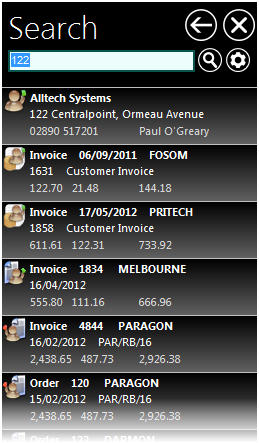
When you have typed in your search term you can press ENTER or TAB on your keyboard or click the magnifying glass to the right of the search box. The software will then search across your information to find any matches to your search term and will display them in the Search panel.
By default the Search facility will search for everything – it will look across every type of information and search field which contains your search term. You can also use the Search facility to very closely define the search criteria you want including what specifically to search for, what fields to search in and also how the search is performed. This will be explained later.
When the search results are displayed they are listed in the main area of the Search panel. Each search result is displayed in a “card” displaying several pieces of information about each search record found. Each card includes a Headline which is the main piece of information to describe it. For example if the result is a customer record then the Headline will be the customer's name, if it's a transaction the Headline will be it's type and date etc. The result list is sorted in Headline order.
By default, Search will look for anything which contains the search term you enter. For example if you're looking for a stock item with the word “electronic”, it will return all items which have that word within it, regardless of whether “electronic” is at the start, middle or end of the field. This allows for the widest possible search. However it can be changed within search settings if you want to search in a different way. Also all searches are non-case sensitive so the search term you enter does not have to be a perfect case match with the data you're looking for.
The Search facility is designed to be incredibly fast at retrieving the results of your search term. However the more information you provide in your search term the fewer results will be returned, the faster the search will be and the more likely that the information that you want will be included in the short list of results provided. Therefore try to avoid entering 1 or 2 letters or digits or entering very generic terms as it may cause the Search facility to return a huge number of results which are unlikely to be of much use to you in locating the information you need.
If you prefer to search for a specific kind of information you can define settings to search only for certain types of information. The quickest and easiest way to do this is to click the down-arrow on the right of the Search button in the toolbar rather than clicking the main Search button.

This will drop-down a menu of available types of information you can search for. Select the option you want from the menu and when the Search panel opens, the software will only reference the type of information you selected to find your search term.
Hiding & Closing Search
With the Search panel displayed on the left of the screen, if you want to proceed with carrying out other tasks in the software you can choose to either hide the Search panel or to close it. Hiding the Search panel will cause it to be removed from the screen but your search settings and the search results will remain available at any time you want to retrieve them. Closing the Search panel will remove it from the screen and remove all settings and results in the current search.
To hide the Search panel click the large, left pointing arrow icon in the top of the search panel

If you have previously chosen to hide the Search panel, clicking the Search button in the toolbar will retrieve it including all of the settings and results used prior to hiding it. This does not include selecting search using the Search drop-down menu which will always reset the settings to the selected option and clear any search results.
To close the Search panel click the large cross in the top right of the search panel.

Search Settings
One of the major features of the Search facility is the ability to very narrowly define your search criteria if you require. To define these settings click the settings "cog" icon on the far right of the search term box as shown below. See Search Settings for more information.

Looking Up Results
The search results that are displayed can be a mix of many different types of records. They can be customers, suppliers, transactions, financial accounts, stock items, document invoices etc. While each result displays information relevant to itself, the format is the same with a Headline and two further lines of information. Also displayed on the left of each card is an icon which graphically lets you know the type of information that the result represents. Below you can see a screenshot of each type of search result card to identify the type of information each represents :
Customer

Supplier
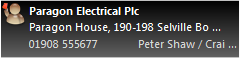
Customer Transaction

Supplier Transaction
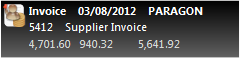
Bank/Financial Transaction

Financial Account

Sales Transaction

Stock Item/Product

Purchasing Transaction

The Search facility also enables you to lookup each search result. When you click on a result in the Search panel, a “card” will pop-up at the side of the result displaying more information about that result, whether it represents a customer, supplier, transaction or any other type of information.
You can click on any other result and the card will move to display information about the newly selected record you have clicked on. To close the card you can click on the red cross in it's top right-hand corner.
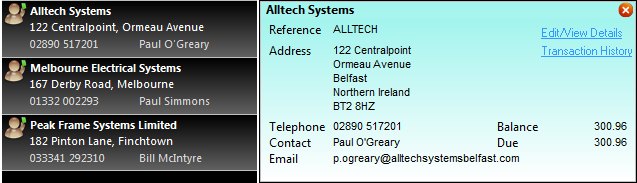
You will also notice on each card that there are links to other options related to the selected search result. For example if the card is for a customer there is a link to view/edit the details of the customer and also to view it's transaction history. For transactions there is a link to perform a full lookup on the transaction.
For some lookup cards, when you click on an option link, the card and the Search panel will immediately be hidden before the selected option is opened. In this case, if you want to re-open the Search panel simply click the Search button again in the toolbar.