Convert Transactions


Convert Transactions **
This option is used to convert sales transactions such as quotations, estimates, proformas and sales orders*** into invoices or other types of transactions. For example if you have entered an estimate that you now want to convert into a full invoice. ***The Convert option is important when converting sales orders into invoices to make use of the sales order stock allocation tracking facilities to despatch stock that was allocated to a sales order.
To access this option click the Convert button in the Sales section.
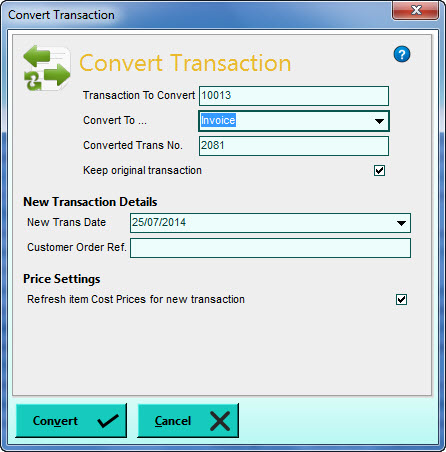
Transaction To Convert
Enter the number of the transaction that you want to convert from. The currently selected transaction in the Sales list will be used as the default (provided it is not an invoice or a credit note transaction). Use the magnifying glass button to the right the of box to perform a search lookup for the required transaction if necessary.
Convert To ...
Use this setting to determine the type of transaction that you want to convert the selected transaction into. Click the down-arrow button or press Alt+DownArrow on your keyboard to drop the list down to see the available options. Select accordingly.
The type of transaction you choose will determine the number for the new transaction that will be created. The new number will be displayed in the Converted Trans No. box.
Keep original transaction
Tick this checkbox if you want to keep the transaction that you are converting. When the new transaction is created you will have both the original and the new transaction listed. If you want to remove the original transaction when the information is converted untick this checkbox. This setting is ticked by default.
New Trans Date
Enter the date that you want to use for the new transaction. This will default to today's date (sign-in date). Click the down-arrow button or press Alt+DownArrow to select a date from a calendar.
Customer Order Ref.
Enter the customer's order reference if required. This will default to the order reference from the original transaction. This is used for reference purposes only.
Refresh item Cost Prices for new transaction
On the original transaction, the cost prices for the items used will have been recorded at the time that the transaction was originally raised. These will be used to calculate the profit on the transaction. Depending on whether the cost prices on the items used have fluctuated since the original transaction was raised, you may wish to refresh the cost prices from the items used for the new transaction at the point of conversion to ensure that both the cost prices and the profit values in the new transaction are up-to-date. This setting is ticked by default. If you want to do a straight copy of the cost prices and profit values from the original transaction then you should untick this box.
When you are ready to convert the transaction click the Convert button or click Cancel to abort.