Document Designer


Document Designer
This option is used to organise and design the layouts of your documents such as invoices*, statements and purchase orders**.
To access this option select Utilities > Document Designer from the main menu.
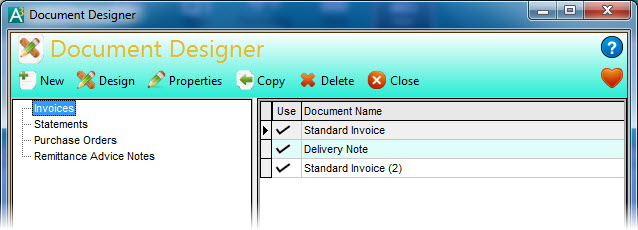
This window is organised by displaying the document types on the left and the actual documents in a list on the right. As you click an option on the left, such as Invoices, all documents you have for that type will be displayed on the right. Before you start working on creating new documents ensure that the document type that you want to work on is selected on the left.
Creating a New Document Layout
On the toolbar at the top of the window you can use two buttons to create a new document layout. These are New and Copy. You use the New button to either create a completely new, blank document to work on or if you want to load an existing document layout file into the software. If you want to create a new document layout based on an existing one then click the Copy button which will enable you to select the existing layout to copy from and the new layout will be created for you to design.
Creating A Blank Layout
If you click the New button you will be given a window to enter the name of the new document. The Document Name you enter is used entirely as a way to identify the layout file in the software. If you don't want to create a new layout file but want to load an existing document file into the software you can enter the file name using the Document File Name box. Click the folder button on the right of the box to browse for the required file.

The checkbox for This document layout is available to use can be unticked if you do not want users to have access to the new layout until you have completed it's design. Later, when you want users to access the layout, you can click the Properties button on the layout and tick this box again.
When you are ready to create your new layout (or to load an existing layout file) click the OK button.
Creating A New Document From An Existing Layout
Click the Copy button in the toolbar. This will display a window where you can enter a name for your new document as a way to identify the layout. You are then asked to select which layout you want to copy from. Click the down-arrow button or press Alt+DownArrow on your keyboard to drop-down a list of the other available layouts which you can copy from. Select the layout that you want.
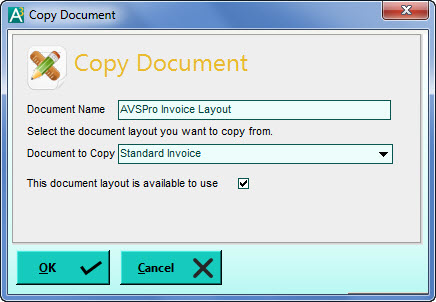
The checkbox for This document layout is available to use can be unticked if you do not want users to have access to the new layout until you have completed it's design. Later, when you want users to access the layout, you can click the Properties button on the layout and tick this box again.
Document Properties
Properties are the information about the document that the software maintains. These include the document's name and the name of the physical document file which contains your layout. To edit any of the document properties you can click the Properties button on the toolbar (or right-click on the relevant document in the right-hand list and select Document Properties from the pop-up menu). This displays a window for you to view or to make any changes you require.

Untick the This document layout is available to use checkbox if you no longer want this layout to be available when using the software or tick the box to include it again if the layout was previously unavailable.
Designing Documents
When you are ready to design or to change a design of the document layout you can select the document in the right-hand list and click the Design button. You can also simply double-click the document in the list or right-click on it and select Design Document from the pop-up menu.
See the Page Designer section for a guide to designing your document layouts.
Assigning Company Default Layouts
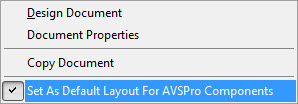
Each type of document can have a layout assigned as the default for the company you are using. This is useful if you have more than one company and each company has their own document layouts eg with their own logos etc. and you want to ensure that the right document layout is automatically used when producing documents for each company. To do this right-click on the layout that you want to assign as the default for the company you are using and select the Set As Default For ... option. If the layout you selected is already the default for the particular company you are using then the option will have a tick to the left on the menu.
Deleting Documents
If you want to delete a document you can highlight the relevant document in the right-hand list and click the Delete button on the toolbar. Before deleting the document you will be warned that using this option will not only delete the record from the document list but will remove the physical layout file as well. If you want to keep the layout file but make the document unavailable to use in the software then use the Properties option (explained above) to make it unavailable. Once you have confirmed that you want to delete the layout then it will be removed from the document list and it's layout file deleted.