Internal Notes


Internal Notes
Internal Notes enable you to store separate notes for each Sales document transaction in addition to the standard notes already included. The standard notes are generally used to include messages to your customers on the invoice documents. Internal notes however are used for you to record additional information about each invoice that are solely for internal reference and use.
You can select to add, edit or view Internal Notes in Invoice Entry when entering a new or viewing an existing transaction by clicking the Add/Edit Internal Notes link below the Notes box. You can also click the Internal Notes button in Transaction Lookup or click the relevant column in the Sales section (as will be explained below).
The Internal Notes window provides a large notepad memo box for you to enter as much information as you require for your internal reference.
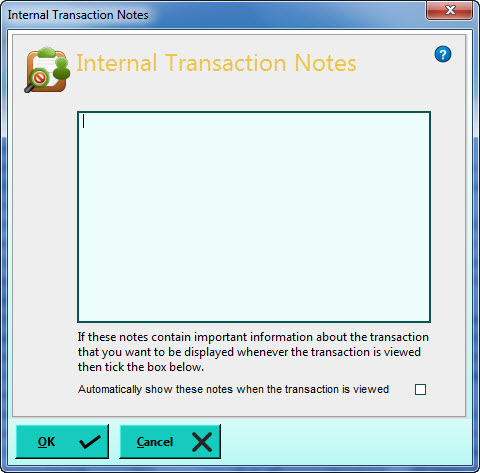
The Internal Notes facility provides a useful feature in instances where the notes that are entered are important and need to be brought to the user's attention whenever the transaction is viewed. This facility can be invoked by ticking the Automatically show these notes when the transaction is viewed checkbox.
If you tick this box, whenever a user views the invoice, whether through the Invoice Entry window or through a transaction lookup anywhere in the software, the Internal Notes window will automatically pop-up displaying the internal notes for the selected transaction. In this way if there is any information which a user needs to be aware of when viewing the invoice it can be put in front of them directly before going on to view and/or make changes.
When you have finished setting up the internal notes for the transaction click the OK button or click Cancel to discard your entry.
Identifying Transactions Which Have Internal Notes
The software provides a way to display which transactions in the Sales section have internal notes. However this is not displayed by default and you need to tell the software that you want to show this information.
To do this, in the Sales section hover your mouse over or click on the Settings tab on the left. When the Settings tab pops-out you will see a panel for Include Option Columns which includes a checkbox called Internal Notes. If you tick this checkbox and return to the main Sales list, you will notice an extra column displayed on the left of the transaction list. If you have not yet entered internal notes for any transactions then this column will appear blank. However when you add internal notes for a transaction, a clipboard icon is displayed for that transaction in the newly displayed column.

If a transaction's internal notes have been marked as important then the column shows an exclamation mark in the clipboard. This then enables you to see, at a glance, which sales transactions have internal notes and also which are marked as important. Also this column can be clicked on for any transaction to add, view or edit their internal notes.
You need only do this once for each section as the software will save your settings and retrieve it the next time you open the section.