Sales Source Report


Sales Source Report
The Sales Source Report is used to provide information regarding the sales transactions based on the Sales Source you select for each transaction at Invoice Entry. Sales Sources are a method used to record and track the source of your sales for example local newspaper, exhibition, trade magazine, Google Adwords etc.
To access this option select Reports > Sales > Sales Source Report from the main menu or select Sales Source Report from the Reports button in the Sales section.

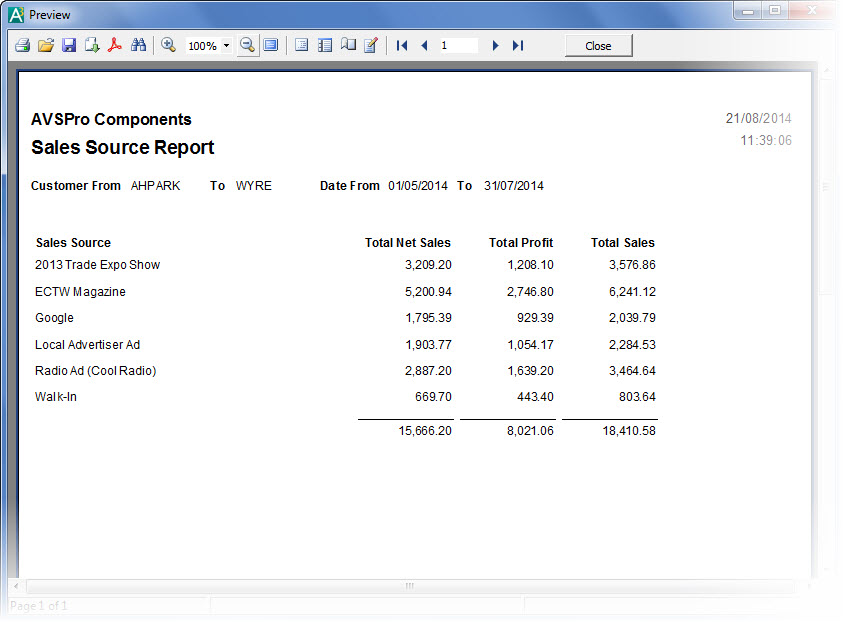
The Sales Source report will list the total net sales, profit and gross sales of all invoice transactions assigned to each sales source based on the customer and date range specified. This will enable you to see where your sales have come from for a specified period. Specifying a customer range is useful if for example you have customer accounts for general Trade Counter or Retail purposes and you want to track the source of sales just for these types of customers.
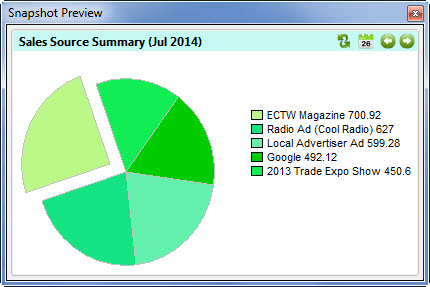
Please note : There are two snapshots available for Sales Source information which can be added to your Dashboard. They are also available from the Snapshots button the Sales section as shown below :
Customer Range
Select the range of customers you want to include transactions for. The customer range settings are always defaulted to the first and last customer references. Use the Look-Up icon (magnifying glass) in each box to find the customer you want.
Date Range
Select the range of dates that you want to include transactions for in the list. The Date From box defaults to the Start Date For Report Range setting in Company Preferences. The Date To box will always default to today's date (or the date you sign-in to the software with). All transactions dated outside this date range will be excluded from the report. Use the drop-down buttons at the side of the date boxes or press Alt+DownArrow on your keyboard to select a date from a pop-up calendar.
Click the Print button to produce the Sales Source report. By default this will show an on-screen preview for you to view the report and you can print it from the Preview window. If you prefer that the software send reports directly to the printer when selecting a Print option then you will need to change the Preview All Reports Before Printing setting in the Reports & Documents page in Company Preferences. See Company Preferences for more information.
The screenshot below shows an example of a preview of the Sales Source Report :
Click the Email button to send an email to a specified recipient with a PDF document of the report attached to it. Once the report is produced you will be given an email window to enter the recipient's email address and the message you want to send with the report. See the Sending Emails page for more information.
Click the PDF button to export a PDF document of the report. Once the report is produced you will be given an export window which enables you to make settings about how you want the PDF document exported and whether you want to open it after it has been exported. You can then select where you want to save it and to save it under a specific file name. See the Exporting PDF Documents for more information.