Product Invoice History


Product Invoice History
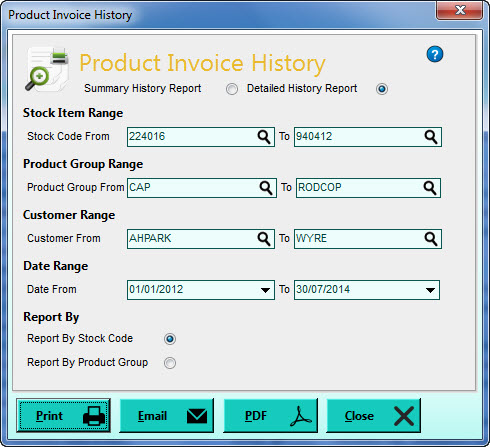
The Product Invoice History report can be used to produce a list of the customers who have purchased selected items / products within a specified date range.
To access this report select Reports > Sales > Product History from the main menu or click the Reports button in the Sales section and select Product Invoice History from the menu.
Summary or Detailed History Report
The option you select here will produce significantly different reports. The Summary report will display all of the customers who have purchased each stock item / product and give the total quantity purchased by each customer, for each item / product in the period specified. The Detailed report on the other hand will list every instance that the customer has purchased each item / product.
Stock Item / Product Range
Select the range of stock items / products that you want to include in the report. The settings are defaulted to the first and last stock / product codes so that all items / products are included by default. Click the magnifying glass button in each box or enter a full or partial code to locate the item / product you want for each setting.
Product Group Range
Select the range of product groups you want to include in the report. The product group range settings are always defaulted to the first and last product group references. Enter the references for the product groups you want or enter a partial reference or click the magnifying glass in each box to find the product group you want. Any items / products not included in the range of product groups you have specified here will not be included in the report regardless of the stock item / product range explained above.
Customer Range
Select the range of customers you want to include transactions for. The customer range settings are always defaulted to the first and last customer references so that all customers will be included. Use the magnifying glass in each box to help you find the customer you want.
Date Range
Select the range of dates that you want to include transactions for in the list. The Date From box defaults to the Start Date For Report Range setting in Company Preferences. The Date To box will always default to today's date (or the date you sign-in to the software with). All transactions dated outside this date range will be excluded from the report. Use the drop-down buttons at the side of the date boxes or press Alt+DownArrow on your keyboard to select a date from a pop-up calendar.
Report By Stock Code or Product Group
This enables you to specify if you want to group the items / products in the report by their respective product group or if you want them in a straight list in stock / product code order. To group items by product group select the Report By Product Group option, otherwise select the Report By Stock / Product Code option.
Click the Print button to produce the Product Invoice History report. By default this will show an on-screen preview for you to view the report and you can print it from the Preview window. If you prefer that the software send reports directly to the printer when selecting a Print option then you will need to change the Preview All Reports Before Printing setting in the Reports & Documents page in Company Preferences. See Company Preferences for more information.

Click the Email button to send an email to a specified recipient with a PDF document of the report attached to it. Once the report is produced you will be given an email window to enter the recipient's email address and the message you want to send with the report. See the Sending Emails page for more information.
Click the PDF button to export a PDF document of the report. Once the report is produced you will be given an export window which enables you to make settings about how you want the PDF document exported and whether you want to open it after it has been exported. You can then select where you want to save it and to save it under a specific file name. See the Exporting PDF Documents for more information.