Picking List


Picking List
The Picking List report can be used to produce a list of items on sales orders that require picking. This option can be accessed from the Reports > Sales > Picking List option on the main menu or from the Reports button in the Sales section
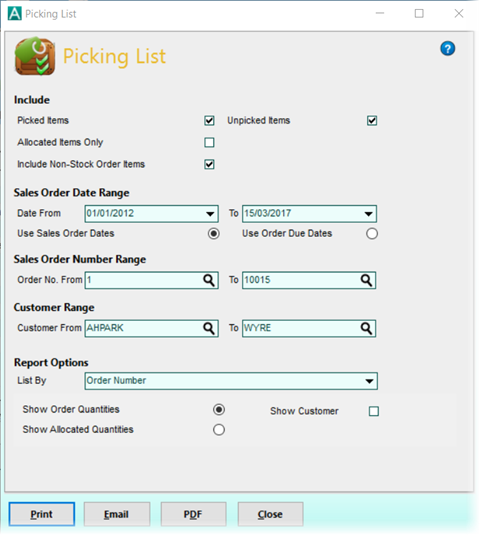
The settings on the Picking List window enable you to closely define the information that you would like to include on your report.
Include
Picked Items
Tick this box if you would like to include order item lines that have previously been picked through the order processing workflow. Untick this box if you do not want to include previously picked items.
Unpicked Items
Tick this box if you would like to include order item lines that have not yet been picked through order processing. Untick this box if you want to exclude order item lines that have not been picked.
Allocated Items Only
If you only want to include order item lines that have already been allocated stock then tick this box.
Include Non-Stock Order Items
If you have lines on sales orders that are free-text and not linked to a stock item you can tick this box to include them on the picking list or untick the box to exclude them.
Sales Order Date Range
Use the Date From and Date To boxes to specify a date range to include sales orders in the picking list. This field that the date range is based on can be changed to be based on either the sales order dates or the sales order due dates as you require using the options beneath the date range boxes. Use the drop-down button on the right of each date box to select a date from a calendar.
Sales Order Number Range
Use the sales order number range to specify a range of sales orders to be included in the picking list report. Sales orders with numbers outside of the specified range will not be included. Enter the required start and finish order numbers into the range boxes provided to select the range or click the magnifying glass on each box to invoke the Search window to help you find the required orders.
Customer Range
Use the Customer From and To boxes to specify references for a range of customers whose sales orders you want to be included in the Picking List. When you change the Customer From setting to a particular customer, the To box will be changed to the same customer reference. To select a customer in either box you can enter the required customer's reference directly, enter a partial reference to invoke a search or click the magnifying glass to display the Search window to help you find the required customer.
Report Options
List By
Select the field that you would like to order the picking list by. For example you may want to list it in order of customer, by stock location or by customer priority. Click the drop-down icon in the box to view the option available and select the list order you want. The options are :
Sales Order Number
Customer Priority
Customer Reference
Stock Location
Stock Code
Show Order or Allocated Quantities
Choose the option for which quantities you want to include on the picking list, either order quantities or allocated quantities. Allocated quantities may be more relevant in some circumstances as they show the stock actually allocated to the order rather than the order quantity which will always show the full order quantity regardless of order processing workflow or part-processes quantities.
Show Customer
If you want to include the customer's reference on the picking list you can tick this box.
When your criteria has been defined using the settings explained above you can click the Print button to print or preview the report. Click Email to generate the report as a PDF and email it to a specified email address. Click the PDF button to generate and export a PDF version of the report.
Click the Close button when you have finished with the Picking List window.