Create New Company


Create New Company
This option is used to create a new setup and data file for a company on the software. You can access this option by selecting File > Company Options > Create New Company from the main menu. You can also create a new company by clicking the Create box from the Company Options window displayed when the software loads.
Please note : The software comes with the ability to create and use 3 separate companies as standard (in addition to the sample company). If you require to have more than 3 companies you can purchase additional company licenses. Please contact Avanti for details.
Creating a new company is done through the Company Setup wizard which takes you step-by-step through the process. You move through the steps of the set up wizard by clicking the Next button or clicking Back to go back a step. Any details you enter in the Company Setup wizard can be changed later so if there is any information you don't know or are unsure of you can still proceed with setting up your company and you can go back and change it later.
The first page of the Company Setup wizard is an introduction page. Click Next to proceed.
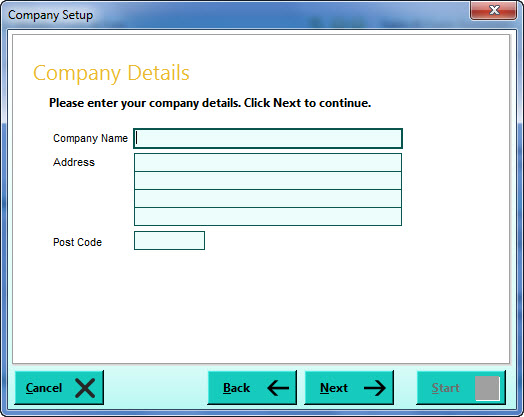
Company Details
Simply enter the new company's name and address. Click Next to continue.
Company Details (2)
Enter the new company's telephone number, email address etc.
Country Settings
In this page you can define settings specific to the country the new company operates in. This includes the currency symbol it uses ie £, $, € (or none at all) and also the terminology you want the company to use for sales tax ie VAT, GST etc. These settings can be changed later through the Currency & Country Settings window available from Company Preferences.
Financial Year Start
In this page you define the start date of this company's financial year. This should be the start date of the current financial year. If you need to create a 13 period financial year you should enter a mid-month start date ie 15th April. For a standard 12 period financial year simply use the 1st of the month on which your financial year starts. You can go back and change this later if required using the Change Company Financial Year option - click here for more information.
VAT Details
This page is used to define the VAT (sales tax) settings for the company. Here you can select if the company is VAT registered, it's VAT registration number, the VAT scheme it uses and also the current standard rate of VAT. These details can be changed later through Company Preferences using the VAT Setup option.
VAT Return Setup
This page is used to define the VAT return settings for the company. Here you can select the frequency of your VAT returns, the months that your returns relate to and which period will be used to calculate your next VAT return. These details can be changed later through Company Preferences using the VAT Setup option.
Transaction Numbers
Specify the start numbers that will be used in the software when recording transactions such as invoices and credit notes etc. These can be changer later if required through the Transactions >> Sales/Purchasing option in Company Preferences.
Copy Setup Information
This page is used to specify if you want to copy an initial set up from an existing company, copy from the sample company or not to copy any set up information at all. If you select to copy set up information from another company, when this new company is created all basic information will be copied including a Chart Of Accounts (a list of financial accounts) and control accounts etc.
If you already have one or more companies set up in the system you will have an option to Copy from Company ... which you should use if you want to copy the set up and list of accounts from another of your companies. When this option is available you should check the option next to it and highlight the company you want to copy from the list provided.
If you want to copy the set up from the provided sample company you should check the Sample Company option. If you are setting up your first company (and you do not have any of your own companies to copy the set up from) this is the recommended option.
If you want to create a company which has no set up information initially included and you want to define all settings from scratch then you should select the Do Not Copy option. This will require considerable set up before you can use the software in earnest as you will need to define your own financial accounts list and your control accounts.
We highly recommend that, unless you have a very specific list of accounts with it's own number coding provided by your accountant, that you select to copy from an existing company or the sample company.
Copy Information
This page enables you to select if you want to copy record information from an existing company to the new company. This page is only available if you have selected to copy setup information from an existing company not including the sample company. It gives you the option to copy Customer, Supplier and Stock/Product records. Tick the relevant boxes for the type of information you want to copy to the new company you are creating. The company which you selected on the Copy Setup Information page will be the company from which the selected information will be copied.
Company Database
All of your new company's data will be stored in a single database file. By default this file will be given a shorthand version of your company name and will be stored in the Data sub-folder of the main Avanti folder.
Standalone Editions
This page displays the full path (location and name) to the new data file to be created for this company. However if you require that the file be stored in an alternative location and/or have a different name you can change it to your requirements here. Use the folder button to the right of the box to browse to another folder or location you want to store the data file in.
Please Note : You will only be able to store and access the data file on the local hard drive or a storage device connected directly to the local PC. You will not be able to access the data file if stored on another connected machine (eg on a network). The browse facility here may allow you to select another connected PC to create and store the physical file however the software will not then be able to access it.
Multi-User Editions
This page displays a prompt for the name of your Server computer, the path to the new data file as it to be stored locally on the Server computer and the full network path (URI) to the server. Please consult the Multi-User Setup Guide for more information.
Complete!
The last page of the Company Setup Wizard informs you that you've done everything to create this new company and you just need to click the Start button to proceed.
Once the Start button is clicked the software will create your new data file in the specified location and will register it for use in the software. Once completed, you will be given a message informing you that the company has been set up and is ready for use.