Suppliers


Suppliers
The Supplier section is a control-panel which enables you to view a list of all of your suppliers and to access all of the features available for processing supplier transactions and viewing and printing supplier reports.
You can access the Supplier section by clicking the Supplier option in the main Options Bar at the top of the Avanti application window.

1) Toolbar
The Toolbar gives you quick access to the main options in the Supplier section. The Transactions and Reports buttons both have arrows on them indicating that when pressed you will be given an additional menu of options.
The New button is used to add a new Supplier and the Edit button enables you to view and/or amend an existing supplier. See the Adding & Editing Suppliers section for more information.
The Transactions button gives you a list of all of the available transactions you can enter for suppliers such as invoices, payments etc. Use the links below for more information on each of the option on this menu.
The History button is used to display the selected supplier's transaction activity. Using this option you can view all transactions for one supplier, a range of suppliers or for all suppliers and also produce transaction reports. See the Transaction History section for more information.
The Remittance button is used to print or email remittance advice note documents to send to your supplier. See the Remittance Advice Notes section for more information.
The Reports button gives a menu of all of the reports available in the Supplier section such as Aged Creditors and Turnover reports. Click the links below for more information on each of the reports available from this menu.
2) Pop-Out Task Bar
The pop-out task bar is a quick and easy way to view and access all of the options available in the Supplier section. You just roll your mouse over the Options or Settings tabs on the left-hand side of the Supplier section and after a second the panel will pop-up from the left. If you mouse-over the Options tabs you will see all of the options available for you to select from. If you move your mouse away it will pop back into it's tab.
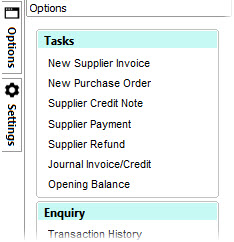
There are three sections in the Options tab, Tasks, Enquiry and Snapshots. Tasks gives you all of the types of common tasks you may carry out, Enquiry gives you all of the options to enquire about Supplier information or to produce reports and Snapshots is used to select any of the snapshots available for the Supplier section. For more information on Snapshots see the Dashboard section.
The other tab on the Pop-Out Task Bar is Settings. This gives you the option to view a List View or a Detail View. Detail View is ticked by default and means that the snapshot panel on the right, displaying key information about the selected Supplier such as invoices due for payment, is displayed. Tick the List View box if you want to remove the snapshot panel and display the full list.
Another option on the Settings tab is to Include Inactive Suppliers. Inactive suppliers are those supplier records that you have set inactive so they no longer appear in lists, searches or reports. Ticking this checkbox will include these inactive records in the Supplier section list. For more details see Set Records Inactive & Active.
The final option in the Settings tab is the Attachments checkbox in the Include Option Columns panel. If you tick this box an additional column is added to the left of the list of supplier which is used to display which suppliers have any attachments. If a supplier has one or more attachments a paperclip icon will be displayed in that column. You can then click this column next to the relevant supplier to add, view, open or remove attachments for their record. You can also add or view attachments by right-clicking on a supplier and selecting Attachments from the pop-up menu. See Attachments for more information.
3) Supplier List
Displays a full list of all of your Suppliers. The Supplier Ref. and Supplier Name are always displayed on the left so as you move to the right to view other columns of information you will always see the name and reference. To display the list in full and remove any other panels you can click the split-panel bars to the right and underneath the list as explained in items 5) and 6).
You can customise the list in various different ways including moving columns, sorting the list by a particular column, filtering the list based on your own criteria, displaying more columns or hiding existing columns and more. See the Customising Lists section for more information. Any customisation you carry out on the list is saved, specific to you, so it is displayed in the way you set it the next time you use the Supplier section.
In the list the first two columns display icons next to each Supplier. The first is the Edit icon. Click this icon next to the Supplier you want to edit and the Edit Supplier window will be displayed. The next column shows the Look-Up icon (magnifying glass). This is very common in Avanti and enables you to drill-down or zoom-in to more specific information on the record you want. In this case clicking the Look-Up icon will show the History for the selected Supplier displaying their transaction activity.
You can also access additional options for the Supplier section by right-clicking on the list and a pop-up menu will be displayed. This is just another way to get at many of the options available in the Supplier section. One option that is not available anywhere else is the Multi-Edit option. This is used where you need to make the same change to more than one Supplier record. You multi-select the Supplier records you want and select Multi-Edit from the right-click menu and you can set the changes you want. For more information see Editing Multiple Suppliers. For more information on multi-selecting records click here.
Another option on the pop-up menu is the Attachments option (as mentioned earlier). Selecting this option will open the Attachments window enabling you to add, view, open and remove file and web-link attachments for the selected supplier.
The options at the bottom of the right-click pop-up menu, starting from Group By This Field, are standard options for all lists in the software (see Customising Lists for more information). The option at the bottom of the menu is Export which enables you to export all of the information in the list in several formats including Excel, CSV and HTML.
4) Snaphot Panel
The display to the right of the Supplier list provides snapshots for the highlighted Supplier record giving key information and stats about the Supplier. These include displaying the Supplier's aged balance and total due for payment, a list of invoices due for payment, a graph showing 4 months turnover for the Supplier and the Supplier's most recent transactions. In the two snapshots which list transactions you can click the Look-Up icon (magnifying glass) next to the relevant transaction to display more information about the transaction. In the Turnover graph snapshot you can click on the left and right green arrow icons in the title bar of the snapshot to view turnover figures for previous months.
In the top-right of each snapshot is a green up-arrow icon. Click this to hide the snapshot. Once hidden, the snapshot displays a down arrow icon which you can click to show it again.
At the top of the snapshots display, the software shows the name of the highlighted Supplier. Use the left and right green arrow icons next to the Supplier name to move to a different Supplier and this will refresh the snapshot view for the newly selected Supplier and move the position in the list accordingly.
5) Snapshot Split-Panel
The Snapshot Split-Panel enables you to hide or resize the Snapshot panel displayed to the right of the Supplier list. If you click the vertical split-panel bar placed between the Supplier list and snapshot panel, the snapshot panel will be hidden and the Supplier list will be expanded to cover the right of the Supplier section. If you click the split-panel bar again (now displayed on the far right of the Supplier list) it will show the snapshot panel again. To resize the snapshot panel and therefore the Supplier list you can click the split-panel bar and drag it to the position you want. The display of the snapshot panel will be saved and used for the next time you open the Supplier section.
6) Details Split-Panel
By default, when the Supplier section is opened, a panel is displayed at the bottom showing some of the details of the currently selected Supplier including name, address, telephone numbers etc. If you want to hide this panel to display more Supplier records on the list you can do so simply by clicking the horizontal split-panel bar underneath the Supplier list. This will hide the Supplier details panel. (The main screenshot at the top of this page shows the Supplier section with the details panel hidden.)
To show the details panel again click the split-panel bar which is now displayed at the very bottom of Supplier section. You can resize the details panel by clicking the split-panel bar and dragging up or down to position it how you want. The display of the details panel will be saved and used the next time you open the Supplier section.